cPanel is the control panel for your 2MHost hosting account. To open it, go to Hosting accounts in the client area and click cPanel. No password is needed.
In cPanel, you manage everything that runs on your hosting account: website files, email, databases and settings. The client area, your 2MHost account at www.2mhost.com, is where you manage billing, domains and help tickets.
What you can do in cPanel
cPanel groups its tools into sections on its home page, shown in the screenshot below. With cPanel, you can:
- Create and manage email accounts. See How to create a mailbox.
- Create MySQL databases and manage them using phpMyAdmin.
- Upload and edit website files in the File Manager.
- Check your website's visitor statistics.
- Change the PHP version and PHP settings such as memory_limit.
- Install web apps such as WordPress.
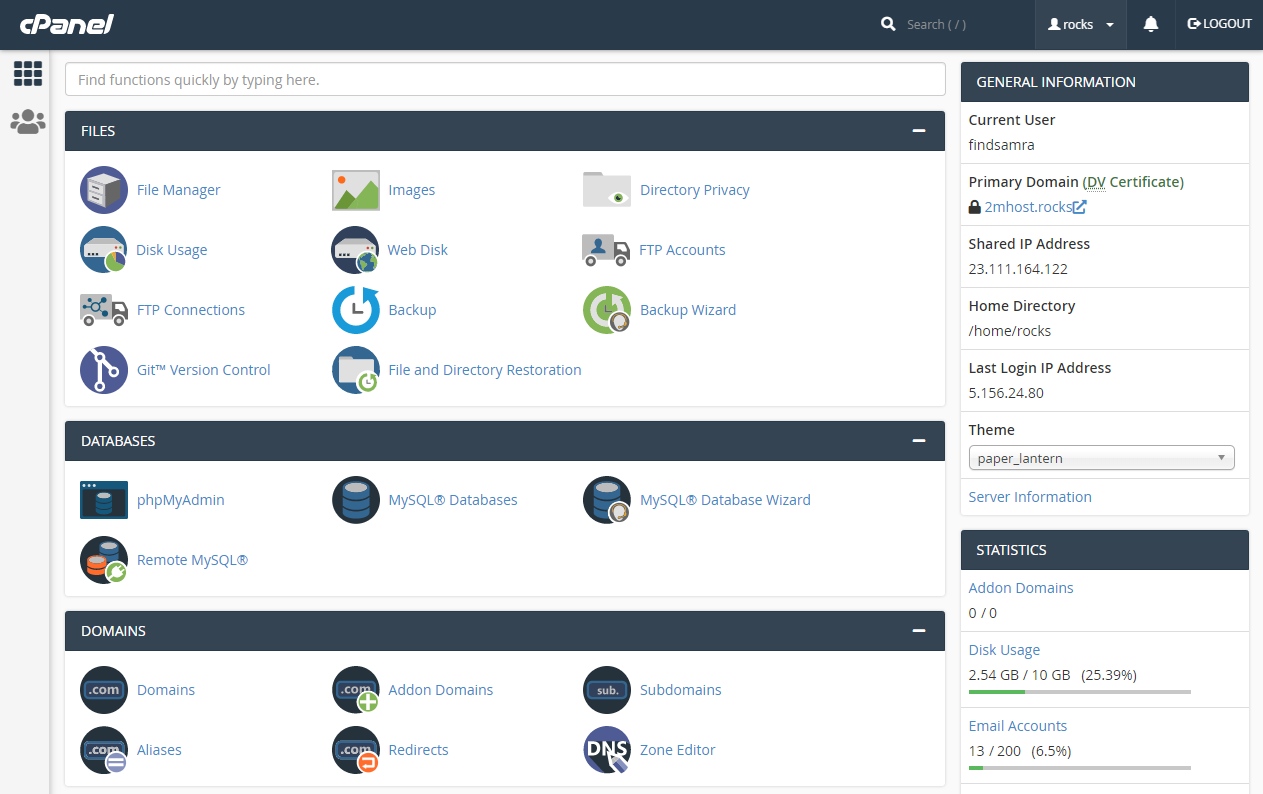
Note: cPanel changes its look from time to time, so your screen may look slightly different from the screenshots in this article.
Open cPanel from the 2MHost client area
The client area has a cPanel shortcut for each hosting account. It opens cPanel already signed in, so you do not need a cPanel username or password.
- Log in to the client area at https://www.2mhost.com/login.
- Click Hosting accounts in the main menu.
- Click the cPanel button next to the hosting account you want to manage. cPanel opens in your browser, already signed in.

You can also open cPanel from the page of the hosting account itself. In Hosting accounts, open the hosting account, then click its cPanel shortcut.

Log in to cPanel with a username and password
You can also log in to cPanel directly, without the client area. This is useful when you give cPanel access to someone who has no client area login.
- Open your browser and go to your cPanel login address:
https://example.com:2083
- Replace
example.comwith your domain name. If your domain does not point to 2MHost yet, use your server host name instead. See What is my server host name and IP address? - Enter your cPanel Username and Password.
- Click Log in. The cPanel home page opens.
Give a web developer access to cPanel
A developer often needs cPanel access to work on your website. You have two options.
Share your cPanel login details
You can send the developer your cPanel login address, username and password. The developer then has access to this one hosting account only, not to your other hosting accounts or your billing information in the client area.
Warning: Your cPanel password gives full control of the hosting account, including all files, email and databases. Change the password in cPanel when the developer's work is finished, so the old password no longer works.
Create a team user with limited access
For more control, use cPanel's Team Manager. It gives the developer their own login with access to selected cPanel tools only, for example files and databases but not email.
- In cPanel, open Manage Team in cPanel left sidebar.
- Click Create Team User.
- Enter the developer's username and email address.
- Select only the roles the developer needs, such as Email or FTP.
- Click Create. cPanel sends the developer an email to set their password.
When the work is done, remove the team user in the same Manage Team screen.
Troubleshooting
The cPanel login page does not load
Your connection may be blocked by the server firewall, often after several failed login attempts. Follow How to check if my connection is blocked by server firewall, or open cPanel from the client area instead.
The login is invalid
The username or password is wrong, or the password was changed. Open cPanel from the Hosting accounts page of the client area, which needs no password, and set a new password there.
Frequently asked questions
Is cPanel the same as the 2MHost client area?
No. The client area is your 2MHost account for billing, domains and help tickets. cPanel manages one hosting account: its website files, email and databases.
How do I change my cPanel password?
You can change cPanel password from your 2MHost client area, see How to change your cPanel password in the 2MHost client area.
Can I protect my cPanel login with two-factor authentication?
Yes. See How to enable two-factor authentication (2FA) for cPanel and Webmail.