You can change your website's PHP version in cPanel under Software › Select PHP Version. Pick the version from the list, then click Apply.
Upgrading PHP makes your site faster and more secure. Some older plugins, themes or scripts may not work with a newer version, so check your software first.
Before you begin
- Check which PHP versions your website software supports. WordPress, its plugins and themes list this on their download pages.
- After PHP version change, if your website did not load, you can change the PHP version to the previous one.
- Optionally, Take a backup of your website so you can restore it if something breaks. See JetBackup for WordPress and server backup.
Change the PHP version in cPanel
- Log in to the 2MHost client area, go to Hosting accounts and click the cPanel button of your hosting account. For other ways to log in, see What is cPanel and how do I log in?
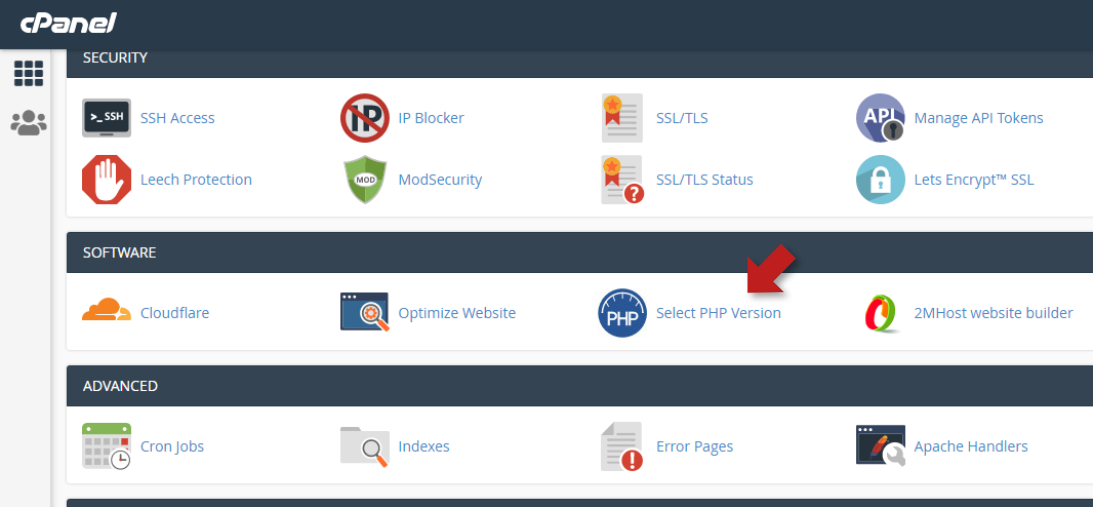
- Scroll down to the Software section and click Select PHP Version.
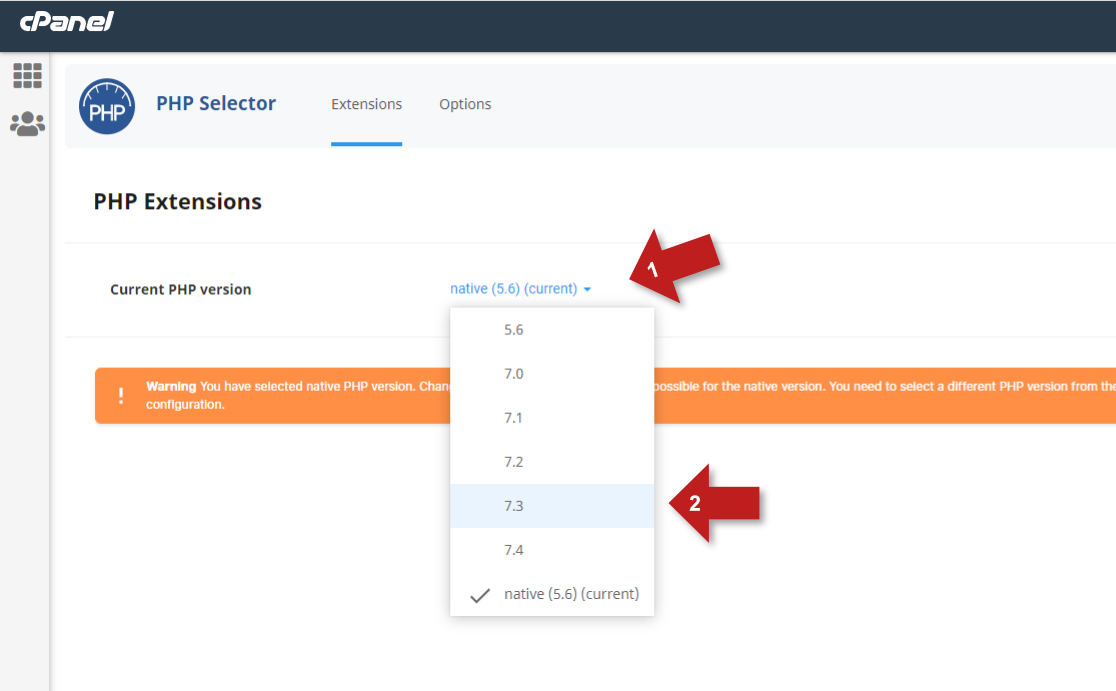
- Open the PHP version list and select the version you want.
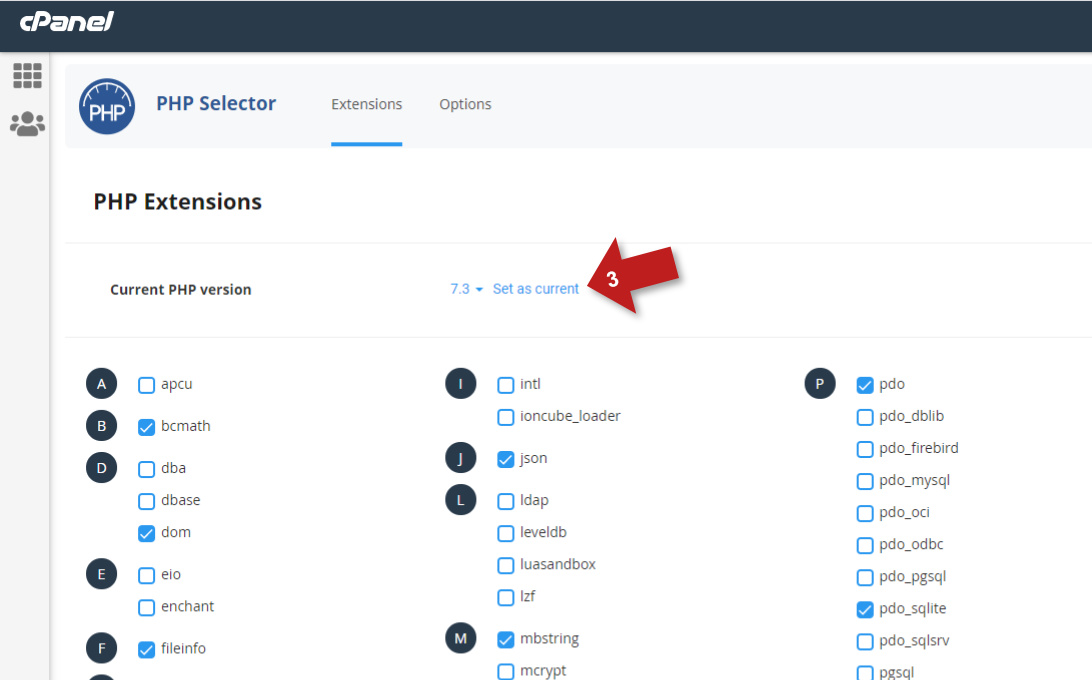
- Click Apply. If you skip this step, your website keeps using the old version.
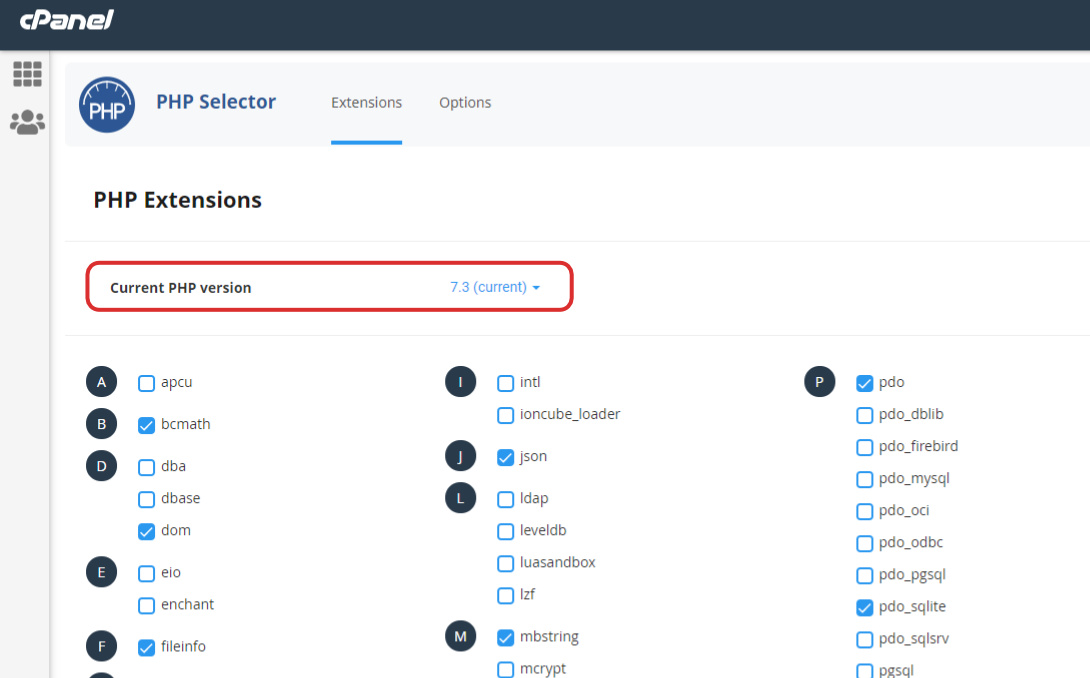
- Check that the page now shows your chosen version as the current PHP version. Your website uses it right away.
Choose PHP extensions
PHP extensions add features to PHP, such as image processing or database access. In cPanel, you manage them on the same Select PHP Version page after you set the PHP version.
- In cPanel, open Software › Select PHP Version.
- Click the Extensions tab.
- Select the check box next to each extension your software needs.
The extensions selected by default are usually enough to run common software like WordPress. Enable more only when your software asks for them.
Note: The extensions list is not available when you use the native version, the server's default PHP version. Select a numbered version to manage extensions.
Troubleshooting
The website shows a blank page or a 500 error after changing PHP
A plugin, theme or script probably does not support the new PHP version.
- In cPanel, open Software › Select PHP Version.
- Select your previous PHP version and click Set as current.
- Update the plugin, theme or script that caused the error, then try the new version again.
If you cannot open the WordPress dashboard, see How to manage a WordPress website when WordPress is inaccessible.
An error says a PHP extension is missing
The new PHP version does not have that extension turned on. In cPanel, open Software › Select PHP Version, click Extensions and select the extension named in the error.
Frequently asked questions
Can I go back to the old PHP version?
Yes. Open Select PHP Version in cPanel, select the old version and click Set as current.
Which PHP version should I choose?
Choose the newest version that your website software supports. Newer versions get security fixes and usually run faster.
How do I change PHP settings like memory_limit?
You change them in the same cPanel tool. See How to modify PHP variables like memory_limit?