You can access Webmail from cPanel, from the 2MHost client area, or in your browser at https://example.com:2096. Sign in with your full email address and mailbox password.
Webmail lets you read and send email in a browser, without setting up a mail app. You need an email account first; if you do not have one yet, see How to create an email account in cPanel.
Open Webmail from cPanel
From cPanel you can open any mailbox on your hosting account without typing its password.
- Log in to the 2MHost client area at https://www.2mhost.com/login.
- Click Hosting accounts, then click the cPanel button of the hosting account. cPanel opens already signed in.

- In cPanel, scroll down to the Email section and click Email Accounts.

- Click Check Email next to the mailbox you want to open. Webmail opens in a new window.

- On the webmail selection screen, select Roundcube, the webmail app 2MHost recommends.
- Select Open my inbox when I log in to skip this screen next time, then click Open.

Your inbox opens in Roundcube, ready to read and send email.

Open Webmail from the 2MHost client area
The 2MHost client area has a direct link to the Webmail login page of each hosting account.
- Log in to the 2MHost client area at https://www.2mhost.com/login.
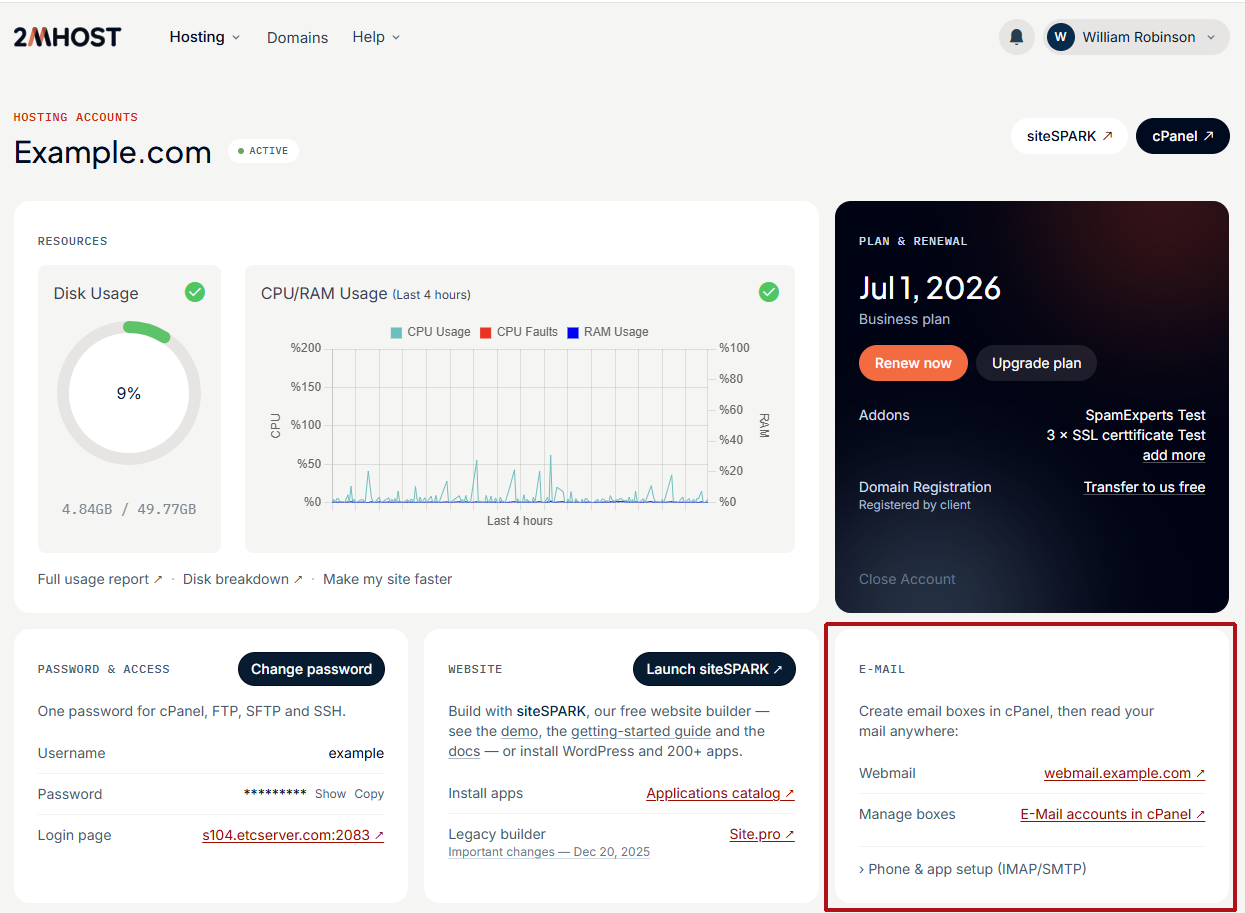
- Click Hosting accounts, then click the domain name of the hosting account to open its page.
- Find the E-mail card and click the Webmail login link.
- Enter your full email address as the username, for example
you@example.com. - Enter the password of the mailbox and click Log in.
Open Webmail directly in your browser
When your domain is active and points to the 2MHost nameservers, you can open Webmail from any browser with this address:
https://example.com:2096/
Replace example.com with your domain name. Port 2096 is the secure Webmail login port of cPanel.
- Open the address above in your browser.
- Enter your full email address as the username, for example
you@example.com. - Enter the password of the mailbox and click Log in.
Note: If your domain does not point to 2MHost yet, use your server host name instead of your domain, for example https://yourserverhostname:2096/. See What is my server host name and IP address? To point the domain, see How do I point my domain to the 2MHost web server?
Troubleshooting
"The login is invalid."
The username or password is wrong, or you entered only the part before the @.
- Enter the full email address, such as
you@example.com, as the username. - If you forgot the password, open cPanel, go to Email › Email Accounts, click Manage next to the mailbox and set a new password.
"This site can't be reached" or the page times out
The domain does not point to 2MHost yet, or the server firewall blocked your connection after several failed logins.
- Use the server host name address from the section above instead of your domain.
- Check whether your IP address is blocked: see How to check if my connection is blocked by server firewall?
Frequently asked questions
Can I use Outlook or Gmail instead of Webmail?
Yes. In cPanel, open Email › Email Accounts and click Connect Devices next to the mailbox to see the settings for your mail app.
Can I protect Webmail with two-factor authentication?
Yes. See How to Enable Two-Factor Authentication (2FA) for cPanel and Webmail.
Why can't I receive new emails in Webmail?
Your mailbox may be full. See How to check and free up email disk space using cPanel.