You can create an email account in cPanel under Email › Email Accounts. The new mailbox works in Webmail and in any mail app, such as Outlook.
Open cPanel from the client area
- Log in to the 2MHost client area at https://www.2mhost.com/login.
- Click Hosting accounts, then click the cPanel button of the hosting account. cPanel opens already signed in.

To learn more about cPanel, see What is cPanel and how do I log in?
Create the email account
Open Email Accounts
- In cPanel, scroll down to the Email section.
- Click Email Accounts. The Email Accounts page opens.
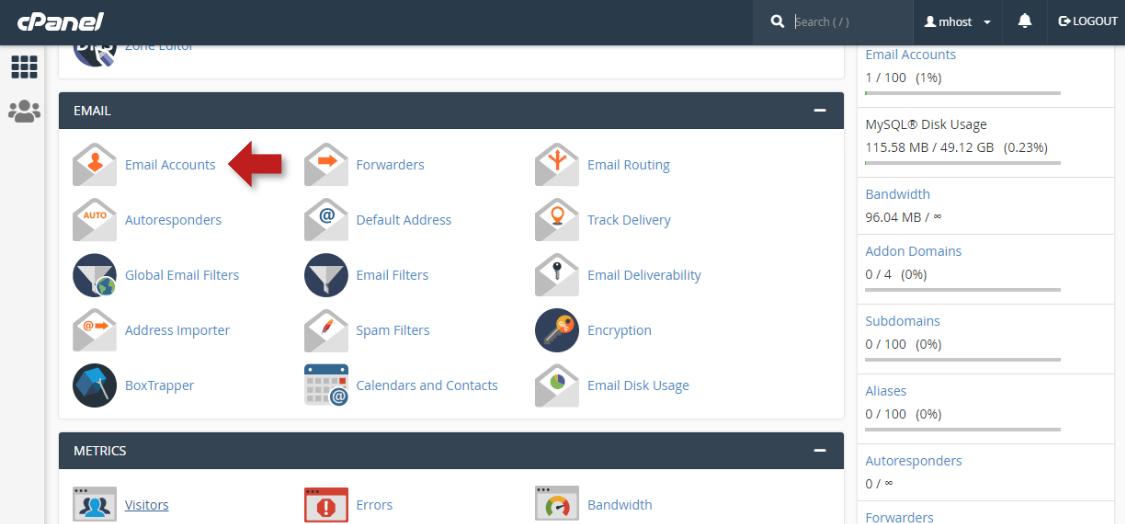
Note: cPanel can look different depending on its theme and version. If you cannot find the icon, type Email Accounts in the search box at the top of cPanel.
Add the new mailbox
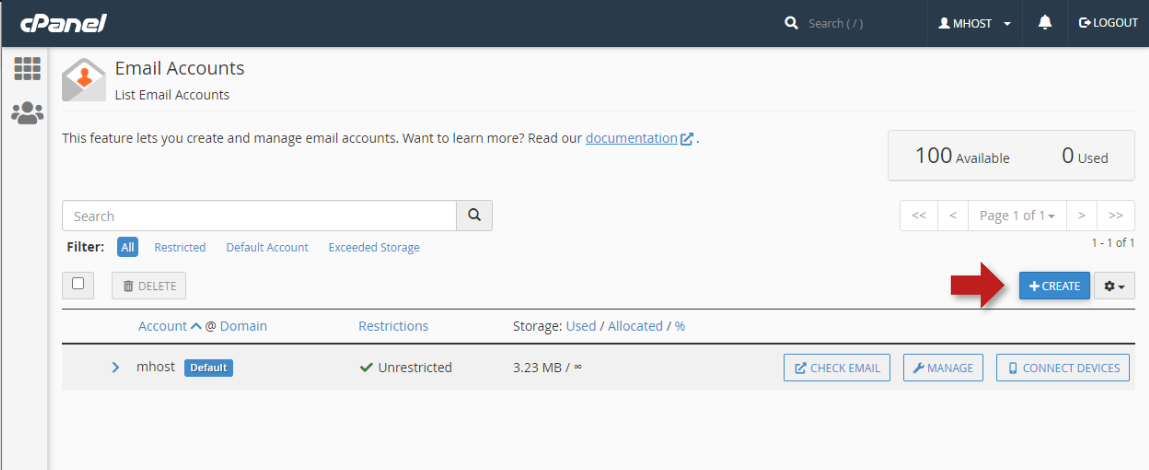
On the Email Accounts page in cPanel, click Create.
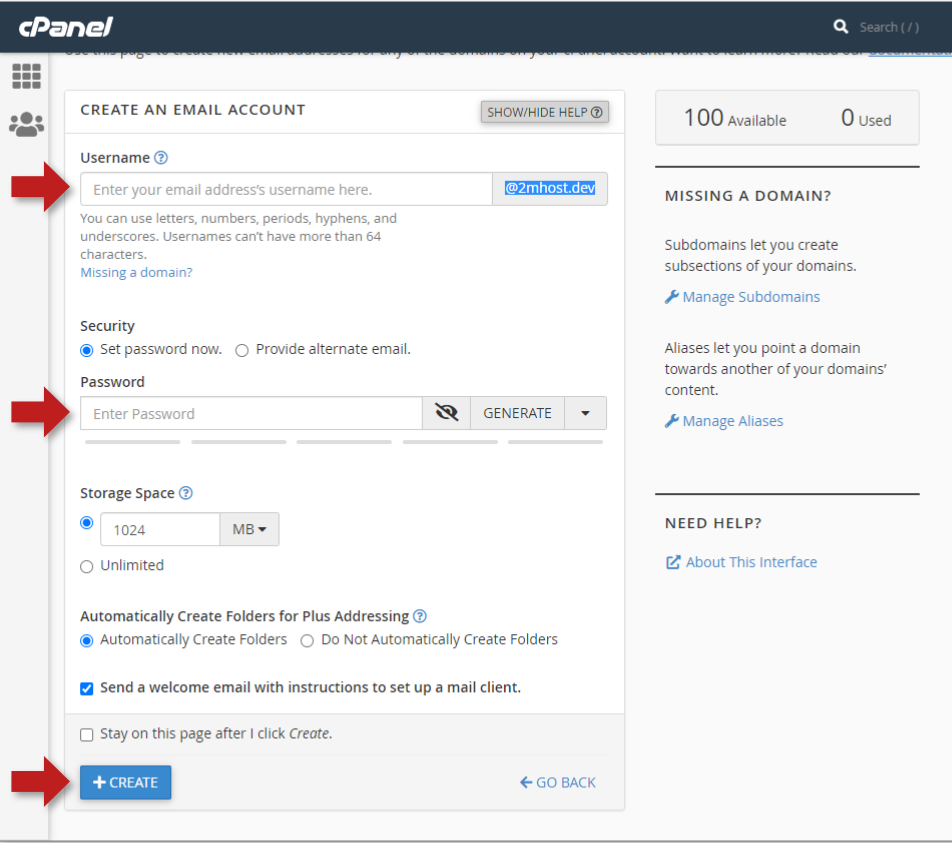
- In Username, enter the part of the address before the @. For example, enter
infoto createinfo@example.com. - If you have more than one domain, select the right one in Domain.
- In Password, enter a strong, hard-to-guess password, or click Generate to create one.
- Click Create. A green confirmation message appears, and the new account shows in the list.
Use the new mailbox
You can read and send email from the new mailbox in your browser with Webmail. See How to access Webmail to read and send email.
To use a mail app like Outlook, open Email › Email Accounts in cPanel and click Connect Devices next to the account. cPanel shows the server names, protocols (IMAP, SMTP) and ports to enter in the app.