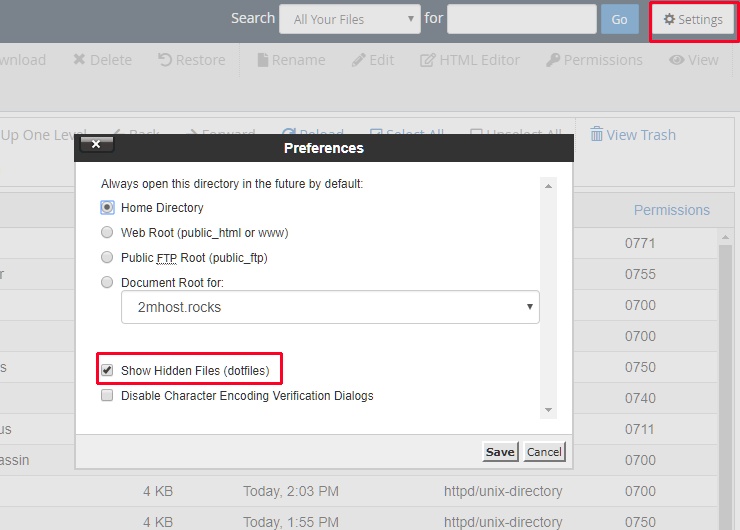
To edit .htaccess in cPanel, open File Manager, click Settings, select Show Hidden Files (dotfiles) and click Save. The file then appears in public_html.
File Manager hides dotfiles by default. Dotfiles are files whose names start with a dot, such as .htaccess, .env and .user.ini. They stay hidden until you turn on hidden files in the File Manager settings. File Manager lets you edit them in your browser, without the command line (SSH).
Before you begin
- You need access to cPanel. See What is cPanel and how do I log in?
- Make a copy of any file before you change it. One wrong line in
.htaccesscan take your whole website offline.
Show hidden files in cPanel File Manager
- Log in to the 2MHost client area at www.2mhost.com/login.
- Go to Hosting accounts and click the cPanel button of your hosting account. cPanel opens already signed in.
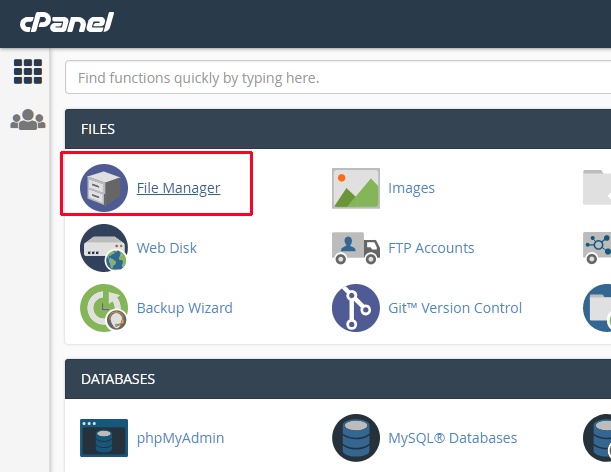
- In the Files section, click File Manager. File Manager opens in a new tab.
- Click Settings in the top-right corner of File Manager.
- Select Show Hidden Files (dotfiles).
- Click Save. File Manager now shows all files whose names start with a dot.
Edit the .htaccess file in File Manager
In cPanel File Manager, with hidden files turned on:
- Double-click the
public_htmlfolder in the left panel or the file list. The.htaccessfile of your main domain is in this folder. - Right-click
.htaccessand click Copy. Enter a new name such aspublic_html/.htaccess.bakand confirm. This is your backup. - Right-click
.htaccessand click Edit. - If a window about character encoding appears, click Edit again. The file opens in the text editor.
- Make your changes.
- Click Save Changes. The change applies right away.
- Open your website in a browser and check that it still loads.
You edit any other hidden file, such as .user.ini or .env, the same way. For PHP settings in .user.ini, see How to modify PHP variables like memory_limit?
Note: An addon domain or subdomain usually has its own folder, with its own .htaccess. Open that folder instead of public_html to change the settings of that site.
Create a .htaccess file if it does not exist
Some websites have no .htaccess file yet. In cPanel File Manager:
- Open the folder of your website, for example
public_html. - Click + File in the toolbar.
- Enter
.htaccessas the file name, with the dot at the start. - Click Create New File. The empty file appears in the list, ready to edit.
Troubleshooting
500 Internal Server Error after saving .htaccess
The file most likely has a typing error or a rule the server does not support.
- In cPanel File Manager, open the folder that holds the file.
- Delete or rename the edited
.htaccess. - Rename your backup, such as
.htaccess.bak, back to.htaccess. Your website loads again.
.htaccess does not appear in public_html
Either hidden files are still off, or the file does not exist.
- In File Manager, click Settings and check that Show Hidden Files (dotfiles) is selected.
- Click Reload in the toolbar to refresh the file list.
- If the file is still missing, create it as described in Create a .htaccess file if it does not exist.
Frequently asked questions
Does showing hidden files change my website?
No. The setting only changes what File Manager shows you. Visitors and your website are not affected.
What can I do with a .htaccess file?
You can redirect visitors, force HTTPS, block access and change some server settings for one folder. For example, see Load website using SSL (HTTPs) by default.