Two-factor authentication (2FA) adds a one-time email code to your 2MHost client area login. Turn it on under Login settings › Two-factor authentication.
What is two-factor authentication?
Two-factor authentication adds a second check when you log in to your 2MHost client area. After your password, you also enter a one-time code that we email to you. Someone who learns your password still cannot get into your account without that code.
How 2FA works at 2MHost
For the 2MHost client area, 2FA works like this:
- The code goes to your account's login email address. You do not need an app or a phone number.
- Each code has 6 digits, works only once, and expires after 10 minutes.
- 2FA is optional and Off by default. You choose whether to turn it On.
Note: This article covers 2FA for the 2MHost client area only. cPanel and Webmail have their own 2FA setting. See how to enable 2FA for cPanel and Webmail.
Turn on 2FA for the client area
Open the two-factor authentication settings
- Log in to the client area at https://www.2mhost.com/login.
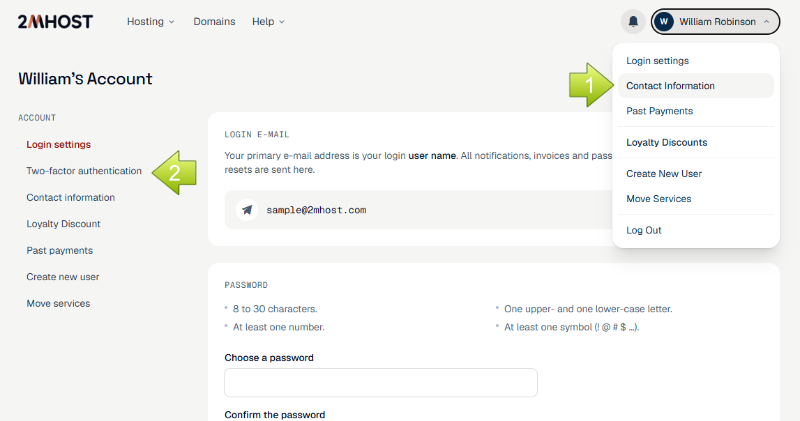
- Click your name at the top right, then select Login settings.
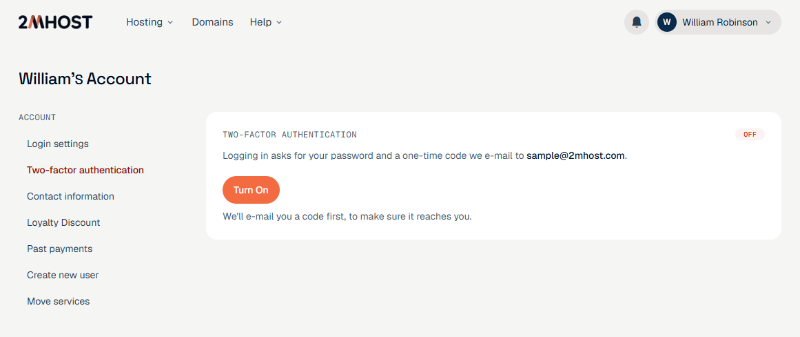
- Select Two-factor authentication in the menu. On a phone, tap 2FA.
Confirm 2FA with the email code
On the Two-factor authentication page in the client area:
- Click Turn on. We email you a code to check that our messages reach you.
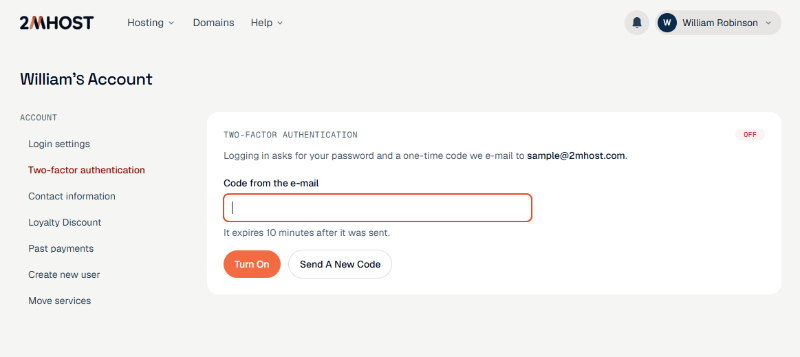
- Open the email "Confirm two-factor authentication for 2MHost" and copy the code.
- Enter the code in Code from the e-mail.
- Click Turn on.
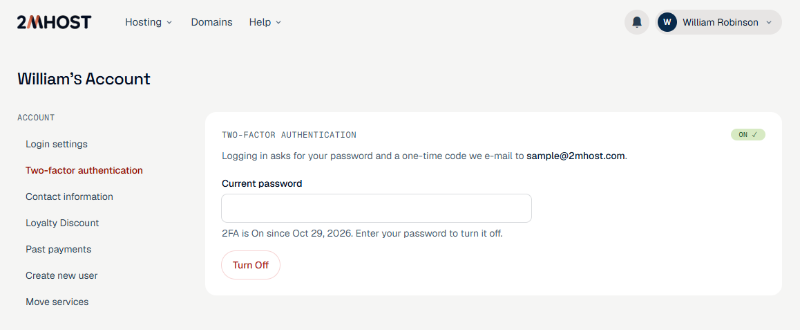
The message "Two-factor authentication is on." and an ON label appear.
If the email does not arrive, check your spam or junk folder, or click Send a new code. You can ask for a new code once a minute.
Log in to the client area with 2FA
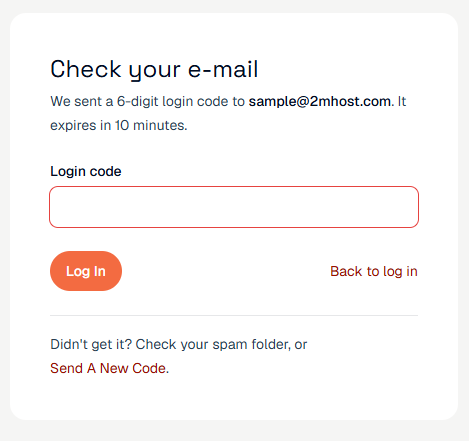
With 2FA on, the 2MHost client area login takes one extra step:
- Enter your email and password at https://www.2mhost.com/login as usual.
- Open the email "Your 2MHost login code".
- Enter the code in Login code.
- Click Log in.
Warning: If you tick Remember me, that browser does not ask for a code again until you log out. Anyone who uses that browser can open your account, so tick it only on your own devices.
Turn off 2FA
To stop using 2FA for the 2MHost client area:
- In the client area, click your name at the top right, select Login settings, then select Two-factor authentication.
- Enter your Current password.
- Click Turn off.
The message "Two-factor authentication is off." appears. From now on, you log in with your password only.
Troubleshooting
The 2FA code email does not arrive
The email is usually in your spam or junk folder, or it is delayed.
- Check your spam or junk folder.
- Click Send a new code at the bottom of the login page, or on the Two-factor authentication page when you turn 2FA on. You can ask for a new code once a minute.
The login code does not work
A code stops working after 10 minutes or after 5 wrong tries. Log in again with your email and password to get a new code.
Codes go to an email address you no longer use
Codes always go to your login email. Keep it up to date under your name at the top right › Contact Information in the client area. If you change it, codes go to the new address, and we send a notice to the old address.